
Zoom Workplace 7.1.8.42948 for Android
7.1.8.42948 · zoom.us · Page updated
Zoom Workplace is the Android app from Zoom for video meetings, team chat and related collaboration tools, formerly known simply as Zoom.
Rate Zoom Workplace
Average 0.0 · ratings: 0
Thank you! Your rating is saved; you can change it. Could not save the rating. Please try again later. Too many ratings from your network today. Please try again tomorrow. The average appears after 5 ratings.
Screenshots
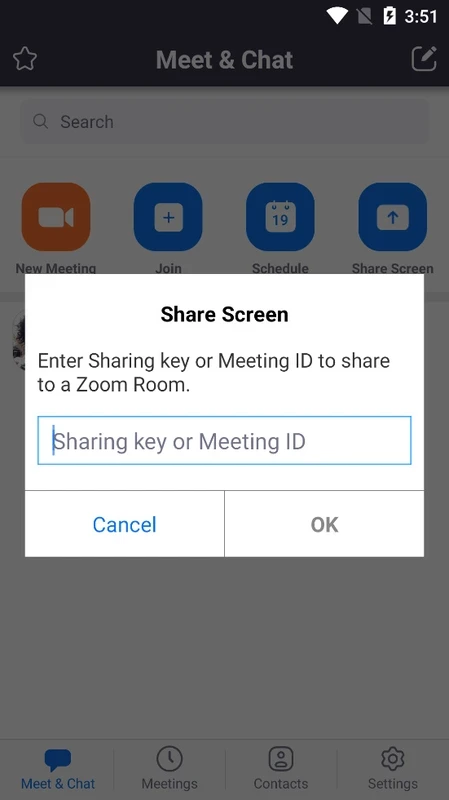
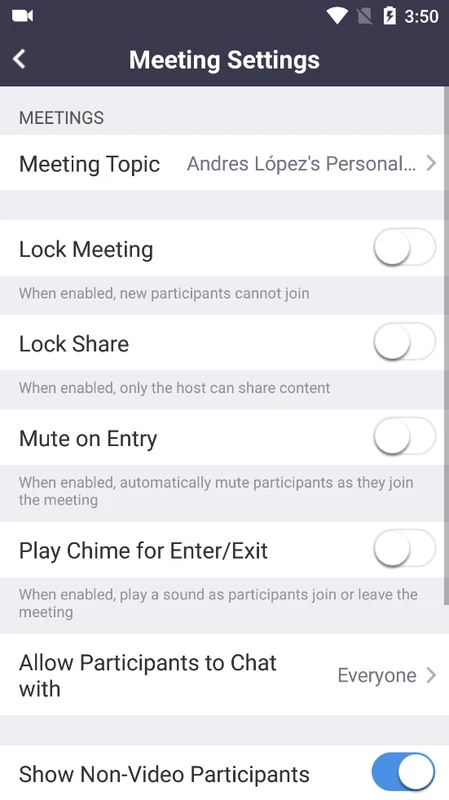
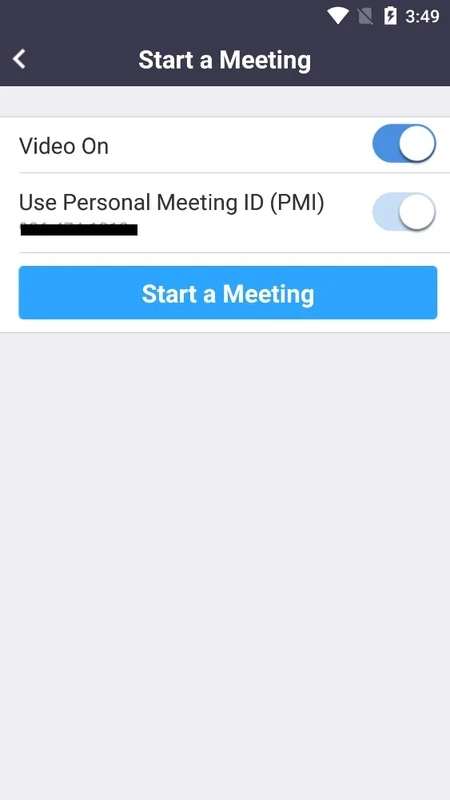
About Zoom Workplace
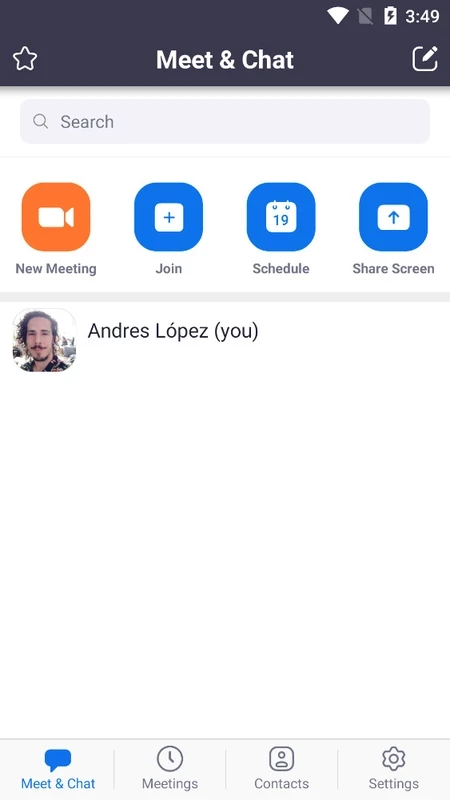
Zoom Workplace 7.1.8.42948 is the Android app from Zoom (zoom.us) for video meetings, team chat and other collaboration tools. It is the same app many people still call simply Zoom: you can join a meeting with a link or ID, host your own calls and chat with colleagues. The app is free to download, and you can download Zoom Workplace for Android from Google Play.
Specifications
| Item | Details |
|---|---|
| Version | 7.1.8.42948 |
| Developer | zoom.us |
| Platform | Android |
| Licence | free app; paid plans for extended features |
| Size | about 148.20 MB according to catalogue data |
| Get it on | Google Play |
What the app offers
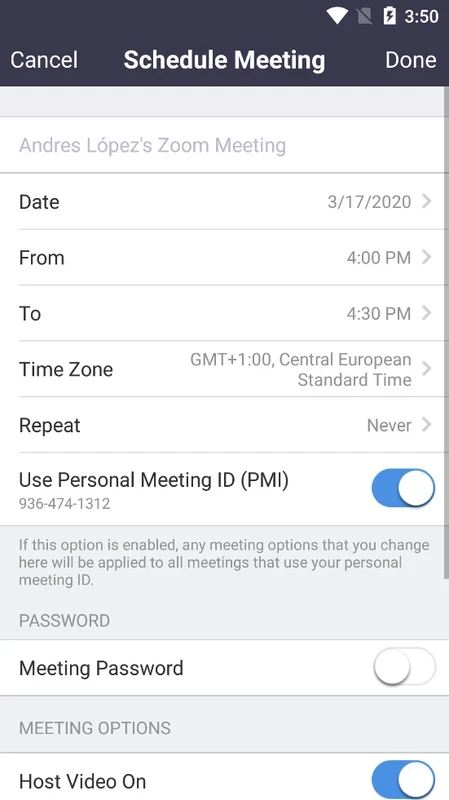
Zoom became the default video call tool for many schools and companies, and the Android app puts all of it in your pocket. You can join meetings from a link in an email or calendar invitation, switch between gallery and speaker view, share your screen or a document, use virtual or blurred backgrounds on supported phones, and chat during the call. With an account you can schedule your own meetings and host them; free accounts have limits, and paid plans remove them. Beyond meetings, Zoom Workplace brings team chat and, depending on your organisation's plan, other tools such as a phone service or a whiteboard. Zoom describes the range on its collaboration tools page, and lists updates in its release notes.
Installation and first meeting
- Install the app from Google Play and check that the developer is zoom.us.
- Tap Join, enter the meeting ID or open the invitation link.
- Allow camera and microphone access when asked.
- Sign in if you want to host meetings or use chat.
Meeting tips
- Join with your microphone muted and unmute when you speak.
- Use headphones to avoid echo.
- Connect to Wi-Fi for long calls to save mobile data.
- Close other apps if video stutters.
Saving data and battery
Video calls are among the heaviest tasks for a phone. Turn off your own video when it is not needed, lower the video quality in the settings if your connection struggles, and keep the phone plugged in for long meetings. Audio-only participation uses a fraction of the data.
Privacy and security
Hosts should use passcodes or waiting rooms for meetings with links shared widely. Do not post meeting links publicly. Check what is visible behind you or on your shared screen, and install Zoom only from Google Play; fake meeting apps and links are a known phishing trick.
Pros and cons
- Pro: easy to join meetings from a link.
- Pro: screen sharing and chat on the phone.
- Pro: free to use for joining and basic hosting.
- Con: free accounts have hosting limits.
- Con: large app that uses a lot of data in video calls.
Alternatives
Other meeting and collaboration apps in our listings include Microsoft Teams, Google Meet, Google Chat and Discord.